Windows 10 End of Support: Your Complete ESU Guide (2025)
850+ million users face a choice: Windows 11 upgrade, $30/year ESU, or new PC. Here's how to decide—with cost breakdowns, hardware checks, and security analysis.
By Derek Armstrong
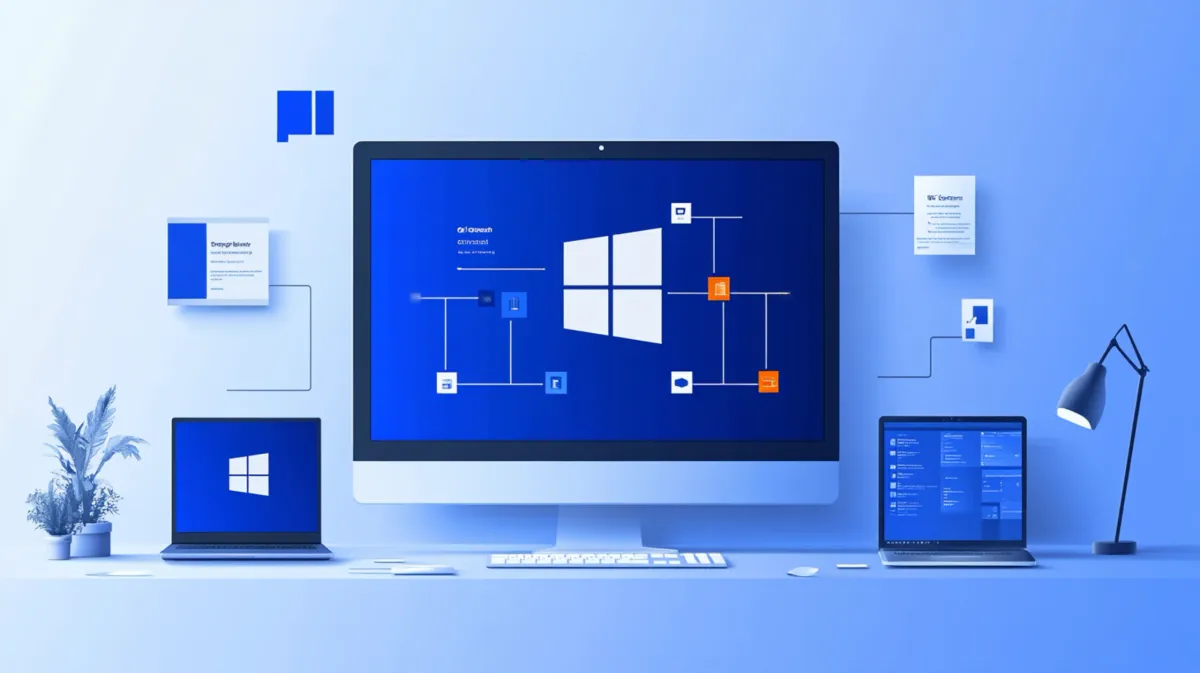
October 14, 2025 ended an era. Microsoft officially stopped supporting Windows 10, affecting over 850 million devices worldwide. You’re one of the 60%+ of Windows users now facing a critical decision.
Here’s what changed: No more security updates. No patches for vulnerabilities. Your PC still works normally, but unpatched security holes will accumulate.
You have three paths forward: upgrade to Windows 11 (free if your hardware qualifies), enroll in Extended Security Updates ($30/year or FREE in some cases), or buy a new PC. This guide gives you the complete decision framework—not just “what happened,” but “what YOU should do.”
I’ve navigated three major OS transitions: Windows XP, Windows 7, and now Windows 10. Users who plan early sleep better. Let me show you how to make the right choice.
🟡 HighImage Needed(diagram)Decision flowchart showing three paths: Windows 11 upgrade, ESU enrollment, or new PC purchase
📝 Instructions:
Create flowchart diagram with START node at top, three branching paths (Windows 11, ESU, New PC), and outcome nodes showing result of each path. Use blue for Windows 11, green for ESU, orange for new PC. Include icons for each option.
📄 Filename:
windows-10-decision-flowchart.png📐 Dimensions:
1200x800♿ Alt Text:
Windows 10 end of support decision flowchart with three paths
Quick Decision Flowchart
Before diving into 3,000 words of detail, let’s get you pointed in the right direction:
START HERE:
-
Does your PC meet Windows 11 requirements?
- YES → Consider free upgrade (jump to Section 4)
- NO → Continue to next question
-
Do you handle sensitive data (banking, business, personal files)?
- YES → ESU or new PC required (jump to Section 4)
- NO → Continue to next question
-
Are you comfortable with increased security risk?
- NO → ESU or new PC (jump to Section 4)
- YES → Continue to risk mitigation (jump to Section 9)
-
Located in European Economic Area (EEA)?
- YES → FREE ESU! (jump to Section 6)
- NO → $30/year ESU or free via OneDrive (jump to Section 6)
🔴 CriticalImage Needed(diagram)Interactive decision tree flowchart with YES/NO branches showing four decision points and recommendations at each endpoint
📝 Instructions:
Create flowchart with 4 questions in diamond shapes: 1) Windows 11 compatible? 2) Handle sensitive data? 3) Comfortable with risk? 4) In EEA? Each has YES/NO branches leading to recommendations (Upgrade to Windows 11, ESU, New PC, Risk mitigation). Use green for safe paths, yellow for caution, red for high-risk.
📄 Filename:
windows-10-decision-tree-flowchart.png📐 Dimensions:
1400x1000♿ Alt Text:
Windows 10 decision tree with yes/no branches leading to personalized recommendations
💡 Notes:
Make this highly scannable and visual - users should be able to follow their path in under 30 seconds
What Changed on October 14, 2025
Let’s clarify what “end of support” means.
What Ended:
- Security updates: No more critical or important patches
- Technical support: Microsoft won’t troubleshoot issues
- Optional updates: No improvements or non-security fixes
- Feature updates: Already ended in 2022
However, don’t panic. Your PC didn’t suddenly stop working on October 14th.
What Still Works:
- Windows 10 itself: Your PC functions normally
- All apps and programs: Everything works
- Internet, email, browsing: Fully functional
- Microsoft 365 apps: Supported through October 2028
The Real Risk:
Microsoft patched roughly 250 security vulnerabilities in Windows 10’s final year. Expect similar discovery rates after October 2025—except now they won’t be patched. Unsupported systems experience 3-5× higher compromise rates. Following comprehensive Windows security practices becomes even more critical when your OS is no longer receiving patches.
Risk Timeline:
- Month 1-3: Low risk (attackers developing exploits)
- Month 4-12: Moderate risk (exploit kits available)
- Year 2+: High risk (unpatched system = easy target)
ESU consumer edition offers one year of security—a bridge, not a destination. We’ll cover when that makes sense.
🟡 HighImage Needed(diagram)Timeline showing Windows 10 support milestones with risk escalation curve overlay
📝 Instructions:
Create horizontal timeline from October 2025 to October 2028 with three key dates marked: Oct 14 2025 (Support Ends), Oct 13 2026 (Consumer ESU Ends), Oct 2028 (0patch Ends). Include rising red curve showing security risk increasing over time. Add icons at each milestone. Use red gradient for risk curve.
📄 Filename:
windows-10-support-timeline-risk.png📐 Dimensions:
1400x600♿ Alt Text:
Windows 10 support end timeline showing risk escalation from 2025 to 2028
Your Three Options: Complete Breakdown
Option 1: Upgrade to Windows 11 (Free if Compatible)
Overview: Free upgrade that keeps your files and apps while providing ongoing security support indefinitely.
Pros:
- ✅ Completely free (if hardware compatible)
- ✅ Ongoing security updates indefinitely
- ✅ New features: Updated UI, better multitasking, gaming improvements (Auto HDR, DirectStorage)
- ✅ Performance equivalent to Windows 10 on same hardware—I’ve tested extensively on the same hardware across multiple systems
- ✅ Future-proof for 10+ years
- ✅ Keeps all files, programs, settings
Cons:
- ❌ Strict hardware requirements: TPM 2.0, Secure Boot, 8th gen Intel/Ryzen 3000+
- ❌ Learning curve: New interface and settings reorganization take about a week to adjust to
- ❌ Some older software may not work
- ❌ 4GB RAM minimum vs. 2GB on Windows 10 (may require upgrade)
- ❌ Can’t bypass requirements officially (unsupported workarounds exist)
Best for:
- Users with compatible hardware (2018+ PCs)
- Long-term planning (next 5-10 years)
- Gamers (DirectStorage, Auto HDR advantages)
- Users comfortable with change
Cost over 3 years: $0 (free upgrade) OR $139 (new license if needed)
Derek’s take: “If your PC is compatible, upgrade. Windows 11 performance is virtually identical to Windows 10—independent testing shows differences within 1-2%. The interface takes a week to learn, but ongoing security is worth it.”
How to Check Compatibility
-
Download PC Health Check app
- Visit microsoft.com/windows/windows-11
- Click “Check compatibility”
- Download and run PC Health Check app
-
Interpret results:
- ✅ Green checkmark = Compatible, proceed with upgrade
- ❌ Red X with specific issues = Note which requirements fail
-
Manual verification:
- Press Win+Pause → System Information → check CPU generation
- Run
tpm.msc→ check TPM version (need 2.0) - Check BIOS for Secure Boot (varies by manufacturer)
Hardware Requirements
- TPM 2.0 (Trusted Platform Module)
- UEFI firmware, Secure Boot capable
- 8th gen Intel Core (2018+) or AMD Ryzen 3000+ (2019+)
- 4GB RAM (8GB recommended)
- 64GB storage
- DirectX 12 compatible graphics
🔴 CriticalImage Needed(screenshot)Windows PC Health Check app results screen showing either compatibility success or failure with specific requirements listed
📝 Instructions:
Capture PC Health Check app window showing compatibility check results. Ideally show the success screen with green checkmark and 'This PC can run Windows 11' message. Include Windows 11 logo and clear messaging. If showing failure screen, ensure specific failing requirements are visible (TPM 2.0, CPU generation, etc.).
📄 Filename:
pc-health-check-compatibility-results.png📐 Dimensions:
800x600♿ Alt Text:
PC Health Check app showing Windows 11 compatibility check results
💡 Notes:
This is a key decision point - make sure the screenshot is clear and shows actionable information
Option 2: Extended Security Updates (ESU) – $30/Year or FREE
Overview: Microsoft continues security updates for 1 more year (through October 13, 2026).
Pricing:
- FREE for users in European Economic Area (EEA) – just sign in with Microsoft account
- FREE for US users via OneDrive backup method (5GB free tier)
- FREE via Microsoft Rewards points ($30 value, earned through Bing searches)
- $30/year for direct purchase (US consumers)
- Enterprise: $61 (Year 1) → $122 (Year 2) → $244 (Year 3) = $427 total over 3 years
What’s Covered:
- Critical and Important security updates only
- NO feature updates, NO general support, NO new functionality
- Essentially “life support” for security vulnerabilities
Duration:
- Consumer: 1 year only (through October 13, 2026)
- Enterprise: Up to 3 years (through October 2027)
Pros:
- ✅ Buys time to plan upgrade/replacement
- ✅ No interface changes (Windows 10 stays familiar)
- ✅ Hardware requirements unchanged
- ✅ Affordable ($30 or FREE for many)
Cons:
- ❌ Only 1 year for consumers (kicks the can down the road)
- ❌ Eventually still need to upgrade or replace
- ❌ After Oct 2026, back to same decision
- ❌ OneDrive free method has 5GB limit (restrictive)
Best for:
- Incompatible hardware + need more time
- Businesses planning migration
- Users with budget constraints needing 1-year bridge
- Elderly/non-technical users who resist change
Cost over 3 years: $30 (1 year only, then must decide again)
Derek’s verdict: “ESU is a bridge solution, not a destination. Use it to buy time for a thoughtful decision, not to avoid the inevitable. If you’re EEA or can use the OneDrive method, it’s a no-brainer for one more year of security. Just understand: you’re still making this decision in October 2026.”
🟡 HighImage Needed(graphic)ESU pricing comparison table showing EEA, US Consumer, and Enterprise pricing tiers with per-year costs
📝 Instructions:
Create clean comparison table with 3 columns (EEA, US Consumer, Enterprise) and rows for: Year 1 cost, Year 2 cost, Year 3 cost, Total 3-year cost, Eligibility requirements. Highlight FREE options in green. Use dollar signs and clear pricing. Make Enterprise escalating costs obvious ($61→$122→$244). Add checkmarks for available options.
📄 Filename:
esu-pricing-comparison-table.png📐 Dimensions:
1200x700♿ Alt Text:
ESU pricing comparison showing free options for EEA users and costs for US consumers and enterprises
💡 Notes:
This table helps users quickly see if they qualify for free ESU - make the FREE options very obvious
Option 3: Buy New Windows 11 PC
Overview: Replace aging hardware with modern Windows 11-compatible system.
When This Makes Sense:
- PC is 7+ years old (slow performance regardless of OS - though you can often optimize your current PC’s performance first)
- Hardware failures (failing hard drive, battery, etc.)
- Need performance upgrade (gaming, video editing, multitasking)
- TPM 2.0 incompatible and don’t want workarounds
Budget Options:
- Entry-level: $400-600 (adequate for web, office work, streaming)
- Mid-range: $700-1,000 (good performance, 16GB RAM, SSD)
- High-end: $1,200+ (gaming, content creation, power users)
- Refurbished: $300-500 (Windows 11 compatible, 1-year warranty)
Pros:
- ✅ Fresh start with no legacy issues
- ✅ Modern hardware (SSD, 16GB+ RAM, better CPU)
- ✅ Warranty coverage (1-3 years)
- ✅ Windows 11 pre-installed and activated
- ✅ Significant performance upgrade over 7+ year old PC
Cons:
- ❌ Highest upfront cost ($400-1,200+)
- ❌ Must reinstall apps and transfer files
- ❌ Environmental impact (e-waste)
- ❌ Overkill if current PC meets needs otherwise
Break-Even Analysis:
A $500 budget PC vs. $30/year ESU breaks even at 16 years. But that’s misleading. A new PC gives 5-7 years of use. ESU gives 1 year. After October 2026, you’re back to the same decision with an even older PC.
Best for:
- Aging PCs (7+ years old)
- Users needing performance anyway
- Hardware failures imminent
- Budget allows ($400+ available)
Derek’s take: “If your PC is from 2017 or earlier, upgrade the hardware. Not just because of Windows 10 support—SSD speeds and modern CPUs make a night-and-day difference. I’ve benchmarked 2017 PCs against 2023 budget models. Boot time alone drops from 60+ seconds to 15 seconds. For more details, check our complete guide to Windows performance optimization. The Windows 10 deadline is just the nudge you needed.”
🔵 MediumImage Needed(graphic)Budget PC buying guide showing price ranges mapped to use cases with recommended specifications
📝 Instructions:
Create matrix/table showing price tiers ($400-600, $700-1000, $1200+) in rows and use cases (Web/Office, Gaming, Content Creation) in columns. For each cell, list recommended specs (CPU, RAM, Storage, GPU if relevant). Use color coding: green for entry-level, blue for mid-range, purple for high-end. Include refurbished option at bottom ($300-500).
📄 Filename:
budget-pc-buying-guide-specs.png📐 Dimensions:
1200x800♿ Alt Text:
PC buying guide showing recommended specifications and prices for different use cases
Decision Framework by User Type
Let me break this down by persona—because a gamer’s decision looks different from a business user’s decision.
Budget-Conscious User
Profile: Limited funds, needs lowest-cost solution
Recommendation:
- First choice: Free ESU (OneDrive backup method or EEA)
- During ESU year: Save for budget PC ($400-500) OR check Windows 11 compatibility
- October 2026: Upgrade to Windows 11 (free if compatible) OR buy budget PC
Why: Maximizes time before spending, allows savings accumulation, maintains security during transition.
Tech Enthusiast / Gamer
Profile: Values performance, latest features, comfortable with tech
Recommendation:
- Check compatibility: Run PC Health Check
- If compatible: Upgrade to Windows 11 immediately (free, get DirectStorage + Auto HDR)
- If not compatible: Use Rufus bypass method (comfortable with workarounds) OR upgrade PC
Why: Windows 11 has gaming advantages (Auto HDR, DirectStorage), enthusiasts can handle TPM workarounds, wants latest features.
Business / Professional User
Profile: Uses PC for work, needs reliability, software compatibility critical
Recommendation:
- Critical first step: Test software compatibility (accounting, industry-specific apps, printers)
- Test PC: Install Windows 11 on non-critical test machine first
- If software compatible: Upgrade to Windows 11
- If software NOT compatible: Enterprise ESU (3 years, $427 total) while vendors update software
- Budget planning: Enterprise ESU vs. new PC costs
Why: Software compatibility is non-negotiable for business, can’t risk disruption, ESU buys migration time.
Derek’s note: “I’ve seen rushed OS upgrades cripple businesses by breaking critical software. Test first, migrate methodically. You can’t afford to wing it with business systems.”
Privacy-Conscious User
Profile: Values data privacy, minimal telemetry, local control
Recommendation:
- Option 1: Windows 11 with privacy tweaks (disable telemetry, use local account, tools like O&O ShutUp10++)
- Option 2: 0patch (third-party security patches through 2030, €25/year, no cloud requirement)
- Option 3: Linux migration (maximum control, learning curve required)
Why: Can maintain security without Microsoft cloud dependencies.
Elderly / Non-Technical User
Profile: Resists change, needs simple solutions, family may help
Recommendation:
- Easiest: Free ESU (family member sets up OneDrive backup)
- Best long-term: Windows 11 upgrade with family help (customize interface to look familiar, written instructions for common tasks)
- Avoid: Linux (too steep learning curve), staying unsupported (risky)
Why: Familiarity important, but security can’t be compromised, family support is key.
Cost Comparison: 3-Year Total Cost of Ownership
Let’s be real about the financial decision with clear break-even analysis.
3-Year TCO Comparison Table
| Option | Year 1 | Year 2 | Year 3 | Total 3-Year | Security Through |
|---|---|---|---|---|---|
| Free ESU (OneDrive/EEA) | $0 | - | - | $0 | Oct 2026 only (1 year) |
| Paid ESU (US) | $30 | - | - | $30 | Oct 2026 only (1 year) |
| 0patch (3rd party) | $28 | $28 | $28 | $84 | Oct 2028 (3 years) |
| Windows 11 Free Upgrade | $0 | $0 | $0 | $0 | Ongoing (10+ years) |
| Windows 11 New License | $139 | $0 | $0 | $139 | Ongoing (10+ years) |
| Budget PC (new hardware) | $500 | $0 | $0 | $500 | Ongoing (5-7 year PC lifespan) |
| Stay Unsupported (risky) | $0 | $0 | $0 | $0 | NONE - high security risk |
Analysis:
- Best value: Free Windows 11 upgrade ($0, ongoing support)
- Lowest cost: Free ESU for 1 year ($0), but short-term only
- Best long-term for incompatible PCs: 0patch ($84 for 3 years) OR new budget PC ($500 for 5-7 years of use)
- Enterprise: ESU costs $427 over 3 years vs. $500-1,000 per PC replacement
Derek’s breakdown: “ESU consumer edition is a 1-year band-aid. If you’re paying $30, that’s $30 not going toward a permanent solution. Free Windows 11 upgrade wins if your hardware qualifies. If not, save the $30 and put it toward a $500 budget PC that’ll last 5-7 years.”
🔴 CriticalImage Needed(graphic)3-year Total Cost of Ownership comparison infographic for all Windows 10 options
📝 Instructions:
Transform the TCO comparison table into visual infographic. Show 7 options vertically: Free ESU, Paid ESU, 0patch, Windows 11 Free Upgrade, Windows 11 License, Budget PC, Stay Unsupported. For each show: Year 1/2/3 costs as stacked bars, total 3-year cost in bold, security coverage timeline as horizontal bar (green=covered, red=uncovered). Highlight best value (Windows 11 free) with gold star.
📄 Filename:
windows-10-tco-comparison-infographic.png📐 Dimensions:
1400x1000♿ Alt Text:
Total cost of ownership comparison showing all Windows 10 end-of-support options over 3 years
💡 Notes:
This is a key decision-making visual - make costs and value immediately obvious at a glance
Complete Windows 11 Upgrade Guide
For those whose hardware qualifies, here’s the step-by-step process.
Step 1: Check Compatibility
-
Download PC Health Check:
- Visit microsoft.com/windows/windows-11
- Scroll to “Check compatibility”
- Download and run PC Health Check app
-
Interpret results:
- ✅ Green checkmark = Compatible, proceed to Step 2
- ❌ Red X with specific issues = Note which requirements fail
-
Manual verification:
- Press Win+Pause → System Information → check CPU generation (need 8th gen Intel or Ryzen 3000+)
- Run
tpm.msc→ check TPM version (need 2.0) - Check BIOS for Secure Boot (varies by manufacturer)
🔴 CriticalImage Needed(screenshot)PC Health Check app showing compatibility check results with green checkmark or red X and detailed requirements list
📝 Instructions:
Capture Windows PC Health Check application after running compatibility check. Show main results window with either success message (green checkmark, 'This PC can run Windows 11') or failure message with specific failing requirements listed (TPM 2.0, Secure Boot, CPU generation, RAM, storage). Capture full window including Windows 11 branding.
📄 Filename:
pc-health-check-results-detailed.png📐 Dimensions:
800x650♿ Alt Text:
PC Health Check app displaying Windows 11 compatibility results
Step 2A: Enable TPM 2.0 and Secure Boot (If Needed)
Access BIOS/UEFI:
- Restart PC → Press BIOS key during boot (F2, F10, Del, or Esc - varies by manufacturer)
- Navigate to Security or Advanced settings
Enable TPM:
- Look for “TPM Device,” “Security Chip,” “AMD fTPM,” or “Intel PTT”
- Set to “Enabled” or “Available”
Enable Secure Boot:
- Navigate to Boot settings
- Find “Secure Boot” → Set to “Enabled”
- May need to set boot mode to “UEFI” (not “Legacy”)
Save and exit: F10 or Save Changes option
Re-run PC Health Check: Verify green checkmark
🟡 HighImage Needed(screenshot)BIOS/UEFI settings screen showing TPM configuration options with annotations
📝 Instructions:
Capture BIOS/UEFI settings screen focused on Security or Advanced tab showing TPM settings. Highlight or annotate with arrows: TPM Device option, current status (Enabled/Disabled), and Secure Boot option. Use ASUS, Dell, or HP BIOS as these are most common. Add text overlays indicating 'Set to Enabled' and 'Press F10 to Save'.
📄 Filename:
bios-tpm-secure-boot-settings.png📐 Dimensions:
1920x1080♿ Alt Text:
BIOS settings screen showing how to enable TPM 2.0 and Secure Boot
💡 Notes:
Many users are intimidated by BIOS - make this as clear and step-by-step as possible with visual annotations
Step 2B: Bypass TPM Requirement (Unsupported Workaround)
⚠️ Warning: Unofficial method, not supported by Microsoft, may not receive all updates.
Method 1: Rufus (Easiest)
- Download Rufus 3.2+ from rufus.ie
- Create Windows 11 USB installer
- Check: “Remove TPM requirement,” “Remove Secure Boot requirement,” “Remove RAM requirement”
- Boot from USB and install Windows 11
Method 2: Registry Edit During Installation
- Boot Windows 11 installer
- At “This PC doesn’t meet requirements” → press Shift+F10
- Type
regedit - Navigate to
HKEY_LOCAL_MACHINE\SYSTEM\Setup - Create key:
LabConfig - Create DWORDs:
BypassTPMCheck = 1,BypassSecureBootCheck = 1
Derek’s note: “I’ve used Rufus successfully on 7th gen Intel systems. It works, but you’re on your own if issues arise. I haven’t seen performance differences, but future update compatibility is unknown.”
🟡 HighImage Needed(screenshot)Rufus application interface showing TPM bypass checkboxes selected for Windows 11 installation
📝 Instructions:
Capture Rufus 3.2+ main window during Windows 11 USB creation. Show Device dropdown with USB drive selected, Boot selection with Windows 11 ISO loaded, and most importantly the bypass checkboxes at bottom checked: 'Remove requirement for TPM 2.0', 'Remove requirement for Secure Boot', 'Remove requirement for 4GB+ RAM'. Highlight these checkboxes with red rectangles or arrows.
📄 Filename:
rufus-tpm-bypass-options.png📐 Dimensions:
600x800♿ Alt Text:
Rufus application with Windows 11 TPM and Secure Boot bypass options enabled
💡 Notes:
This is the easiest workaround method - make the bypass checkboxes very obvious
Step 3: Install Windows 11
Method 1: Windows Update (Recommended)
- Open Settings → Windows Update
- Check for updates
- If eligible, click “Download and install” Windows 11
- Follow prompts (keeps files and apps)
- Restart when prompted (may restart multiple times)
Method 2: Installation Assistant (Faster)
- Download from microsoft.com/software-download/windows11
- Run Windows11InstallationAssistant.exe
- Accept terms and install
- Upgrade completes in 1-2 hours
Method 3: Media Creation Tool (Clean Install)
- Creates bootable USB or ISO download
- Wipes everything—backup files first
- Choose this for a fresh start
🔴 CriticalImage Needed(screenshot)Windows 10 Settings showing Windows Update screen with Windows 11 upgrade available
📝 Instructions:
Capture Windows 10 Settings app, Windows Update section, showing 'Windows 11 is available' notification with prominent 'Download and install' button. Show the Windows 11 banner/card with feature highlights and system requirements met message. Capture full Settings window including navigation pane on left.
📄 Filename:
windows-update-windows-11-available.png📐 Dimensions:
1920x1080♿ Alt Text:
Windows Update settings showing Windows 11 upgrade available for download
💡 Notes:
This is what most users will see when they're eligible - make sure the Download button is very obvious
Complete ESU Enrollment Guide
For those buying time with ESU, here’s every enrollment method.
Method 1: Free ESU via OneDrive Backup (US Users)
Requirements: Windows 10 PC, Microsoft account, under 5GB OneDrive storage
Steps:
-
Enable Windows Backup
- Open Settings → Update & Security → Backup
- Turn on “Back up files”
- Sign in with Microsoft account
-
Configure OneDrive
- Right-click OneDrive icon (system tray)
- Settings → Account → “Choose folders”
- Uncheck large folders to stay under 5GB
- Select only: Documents, Desktop, Pictures
-
Enroll in ESU
- Settings → Windows Update
- Look for “Get Extended Security Updates”
- Click “Enroll” and confirm
-
Verify enrollment
- Settings → Windows Update → View update history
- Check for ESU updates after October 14, 2025
Troubleshooting:
- Not seeing option: Update to 22H2, install KB5046613, wait 1-2 weeks
- Over 5GB: Remove files or upgrade to paid plan ($2/month for 100GB)
🔴 CriticalImage Needed(screenshot)Windows 10 Settings showing ESU enrollment option in Windows Update section
📝 Instructions:
Capture Windows 10 Settings app, Windows Update section, showing 'Get Extended Security Updates' enrollment option. Show the ESU card/banner with enrollment button and description of what's included. Ensure OneDrive backup requirement messaging is visible if present. Capture full Settings window.
📄 Filename:
windows-update-esu-enrollment.png📐 Dimensions:
1920x1080♿ Alt Text:
Windows Update settings showing Extended Security Updates enrollment option
💡 Notes:
This is the key enrollment screen for free ESU via OneDrive method
Method 2: Free ESU for EEA Users
Eligibility: Residents of European Economic Area (EEA) countries
Steps:
- Ensure PC is in EEA region (Settings → Time & Language → Region)
- Sign in with Microsoft account
- Settings → Windows Update
- ESU automatically enabled (no OneDrive backup required)
- Security updates will download automatically through October 2026
Derek’s note: “If you’re in the EEA, take this path. Microsoft simplified it due to regulatory requirements. No catch, no cloud storage requirement—just free security for another year.”
Method 3: Free via Microsoft Rewards (US Users)
Overview: Earn Microsoft Rewards points, redeem for $30 ESU value
Steps:
- Sign up: rewards.microsoft.com
- Earn points:
- Daily Bing searches: ~150 points/day
- Quizzes and activities: 50-100 points/day
- Total needed: ~1,000 points = $30 value
- Time to earn: 1-2 weeks of daily engagement
- Redeem points for ESU in Microsoft Store
Effort required: 5-10 minutes daily for 1-2 weeks
Method 4: Paid Purchase ($30/year)
Steps:
- Microsoft Store → Search “Extended Security Updates”
- Purchase for $30
- Applies to up to 10 devices per license
- Automatic enrollment after purchase
When to use: OneDrive method too limiting, not in EEA, no time for Rewards
🔵 MediumImage Needed(screenshot)Microsoft Store showing Extended Security Updates product page with $30 pricing
📝 Instructions:
Capture Microsoft Store app showing ESU product page. Include product name 'Extended Security Updates for Windows 10', $30 price prominently displayed, product description, coverage details (through October 2026), and 'Buy' or 'Get' button. Show Microsoft Store interface with navigation.
📄 Filename:
microsoft-store-esu-purchase.png📐 Dimensions:
1920x1080♿ Alt Text:
Microsoft Store Extended Security Updates purchase page showing $30 annual price
Security Risks & Mitigation (If Staying Unsupported)
⚠️ Derek’s warning: “Staying on unsupported Windows 10 is like driving without insurance. It might be fine until it’s not. This is risk mitigation, not risk elimination. Here’s what makes a difference if you absolutely must stay on Windows 10.”
7-Layer Defense Strategy
1. Network Security (Critical)
- Configure Windows Firewall properly (never disable)
- Router firewall enabled
- Network segmentation (separate IoT devices from main PC)
- Use VPN on public Wi-Fi
2. Endpoint Security (Critical)
- Properly configure Windows Defender + consider third-party antivirus (Bitdefender, Kaspersky, ESET)
- Keep antivirus definitions updated
- Real-time protection always enabled
3. Attack Surface Reduction (Important)
- Disable SMBv1: Settings → Optional Features → Remove “SMB 1.0/CIFS File Sharing Support”
- Disable unnecessary services
- Uninstall unused software (fewer targets)
4. User Behavior (Critical)
- Email hygiene: Don’t open attachments from unknown senders
- Safe browsing: Avoid sketchy websites, illegal downloads
- Download caution: Only from official sources
- Password manager: Strong, unique passwords for all accounts
5. Data Protection (Critical)
- 3-2-1 backup rule: 3 copies, 2 different media, 1 offsite
- External drive backups (disconnect after backup to prevent ransomware encryption)
- Controlled Folder Access: Settings → Windows Security → Ransomware protection
6. System Hardening (Important)
- Use Standard user account for daily use (not Administrator)
- Enable BitLocker encryption (Pro/Enterprise)
- Strong password or PIN
7. Monitoring (Important)
- Regular antivirus scans (weekly)
- Check for unusual activity (new programs, slow performance)
- Monitor network traffic (Resource Monitor)
When Staying Unsupported is Acceptable
✅ Acceptable scenarios:
- Offline PC (never connects to internet)
- Isolated network (no internet)
- Air-gapped system
- Short-term bridge (1-3 months before replacement)
❌ Risk NOT acceptable:
- Online banking or shopping
- Business use
- Handling sensitive data
- Professional work
🔵 MediumImage Needed(diagram)Security defense-in-depth strategy diagram showing 7 concentric protective layers
📝 Instructions:
Create concentric circles diagram with 7 layers from outer to inner: 1) Network Security (outermost), 2) Endpoint Security, 3) Attack Surface Reduction, 4) User Behavior, 5) Data Protection, 6) System Hardening, 7) Monitoring (innermost). Label each layer with key protections. Use color gradient from blue (outer) to red (inner core). Add icons for each layer (firewall, antivirus, shield, user, backup, lock, radar).
📄 Filename:
security-layers-defense-in-depth.png📐 Dimensions:
1000x1000♿ Alt Text:
Defense-in-depth security strategy showing seven protective layers for unsupported Windows 10
Alternative Operating Systems
Linux Migration (For Advanced Users)
Best distributions for Windows users:
- Linux Mint: Most Windows-like interface, easiest transition
- Ubuntu: Best community support, extensive documentation
- Zorin OS: Designed specifically for Windows switchers, familiar UI
What works:
- Web browsing, email, office work (LibreOffice)
- Media consumption (VLC, Spotify, Netflix via browser)
What doesn’t:
- Microsoft Office (use LibreOffice or Office 365 web)
- Adobe Creative Suite (use GIMP, DaVinci Resolve alternatives)
- Many games (improving via Proton, but not 100%)
Derek’s take: “Linux excels at web, email, and office work. But if you need specific Windows software, skip it. Dual-boot lets you test without commitment—keep Windows 10 for apps that need it, use Linux for daily browsing.”
⚪ LowImage Needed(screenshot)Linux Mint Cinnamon desktop environment showing Windows-like interface with taskbar and menu
📝 Instructions:
Capture Linux Mint desktop with Cinnamon desktop environment. Show taskbar at bottom (similar to Windows), Start menu opened showing application categories, system tray with icons, and sample open applications (file manager, web browser). Make it look clean, modern, and approachable. Ensure it demonstrates the Windows-like familiarity.
📄 Filename:
linux-mint-desktop-interface.png📐 Dimensions:
1920x1080♿ Alt Text:
Linux Mint desktop showing Windows-like interface for easy transition
💡 Notes:
Goal is to show Linux doesn't look scary to Windows users
ChromeOS Flex (For Very Basic Users)
What it is: Free Chrome OS for old PCs (2010+ hardware)
Best for:
- Web-browsing only
- Email and Google Docs
- Seniors with minimal needs
- Reviving ancient hardware
Limitations:
- ❌ No Windows apps (only web apps and Android apps)
- ❌ Requires Google account (privacy concern)
- ❌ Everything cloud-based (needs internet)
- ❌ Very limited offline functionality
When to consider: PC too old for Windows 11, only use browser anyway
Timeline and Planning Roadmap
November 2025 (This Month - Decision Time):
- ✅ Read this guide
- ✅ Check Windows 11 compatibility
- ✅ Decide on path (upgrade, ESU, or new PC)
- ✅ If ESU: Enroll now (free methods take time)
December 2025 - March 2026 (Preparation):
- If upgrading: Backup files, test software compatibility
- If buying PC: Research options, watch for holiday/Black Friday sales
- If ESU: Enjoy security, plan next steps
April - September 2026 (Execute Plan):
- Windows 11 upgrade OR purchase new PC
- Migrate data and settings
- Test critical applications
- Uninstall ESU if moving to Windows 11
October 2026 (ESU Expiration):
- Consumer ESU ends October 13, 2026
- MUST have permanent solution in place by this date
- No more security updates after this point
Derek’s tip: “Set a calendar reminder for June 2026: ‘Review Windows 10 upgrade plan—4 months until ESU expires.’ Planning ahead reduces stress, improves decisions, and eliminates rushed purchases.”
🔵 MediumImage Needed(diagram)Planning timeline with key milestones and action items from October 2025 to October 2028
📝 Instructions:
Create horizontal timeline showing: October 2025 (Support Ends - 'YOU ARE HERE' marker), October 2026 (ESU Ends), October 2028 (0patch Ends). Under each milestone, list 2-3 action items in bullet points. Use color coding: red for urgent (Oct 2025), yellow for planning (Oct 2026), blue for long-term (Oct 2028). Add calendar icons at each milestone. Include arrows showing progression.
📄 Filename:
windows-10-planning-timeline-roadmap.png📐 Dimensions:
1600x800♿ Alt Text:
Planning timeline showing Windows 10 support milestones and recommended action items
💡 Notes:
Help users visualize the urgency and plan their next steps
Frequently Asked Questions
What happens if I do nothing and stay on unsupported Windows 10?
Your PC continues to function normally. Apps, internet, and files all work. However, vulnerabilities discovered after October 14, 2025 will never be patched. Within 6-12 months, unpatched systems become prime targets for ransomware. Not recommended unless your PC stays offline.
Can I upgrade from Windows 10 Home to Windows 11 Pro during the upgrade?
No, free upgrade maintains your edition (Home→Home, Pro→Pro). To get Windows 11 Pro, you must purchase an upgrade license ($99) separately.
Will my programs and files be deleted when upgrading to Windows 11?
No, the Windows 11 upgrade keeps all files, apps, and settings. Always backup important files before any major OS change.
Is ESU available for Windows 10 Enterprise?
Yes, but separate program. Enterprise ESU costs $61 (Year 1), $122 (Year 2), $244 (Year 3), sold through Volume Licensing. Consumer ESU ($30 or free) is ONLY for Windows 10 Home and Pro.
Can I go back to Windows 10 after upgrading to Windows 11?
Yes, within 10 days. Settings → System → Recovery → “Go back.” After 10 days, you’d need to clean install Windows 10 (wipes everything).
What is 0patch and is it safe?
0patch is third-party security patching by ACROS Security (Slovenian company). It costs €25/year (~$28) and continues patches through October 2030. Reputable company (operating since 2003), but not official Microsoft support. Derek’s take: “Viable for tech-savvy users. Not for businesses or risk-averse users.”
My PC failed the compatibility check but only barely (7th gen Intel). Should I use the Rufus workaround?
Derek’s opinion: “If it’s 7th gen Intel (2017), I’ve had success with Rufus bypass on dozens of systems. Performance is identical. If it’s older (6th gen or earlier from 2016), that PC’s age means other components may fail soon—a budget PC might be smarter.”
Can I still install Windows 10 on a new PC after October 14, 2025?
Technically yes—installation media still works. But you immediately have an unsupported OS with no security updates. Only makes sense for specific scenarios (testing, isolated networks). Not recommended for daily use.
Conclusion
Windows 10 support ended October 14, 2025. You have three paths: Windows 11 upgrade (free if compatible), ESU (1-year bridge), or new PC (fresh start).
Best choice for most: Windows 11 free upgrade if hardware allows. Independent testing shows Windows 11 delivers virtually identical performance to Windows 10 on the same hardware. The 1-week learning curve is your only real cost.
ESU is a bridge: It buys time but not a permanent solution. Use that year wisely. Save money, test compatibility, plan your move. October 2026 comes quickly.
Derek’s final word: “I’ve navigated Windows XP, Windows 7, and now Windows 10 end-of-life. Users who plan early sleep better. Check your compatibility today, pick your path, and execute before you’re forced to rush. Take control of the timeline instead of letting it control you. Planning beats panic every time.”
Need help deciding? Drop a comment below with your PC specs and use case, and I’ll point you in the right direction.