Complete Guide to Upgrading to SSD - Choosing, Cloning, and Installation
Learn how to upgrade from HDD to SSD with our complete guide covering SSD selection, cloning, installation, and optimization. No reinstalling Windows required.
By Derek Armstrong
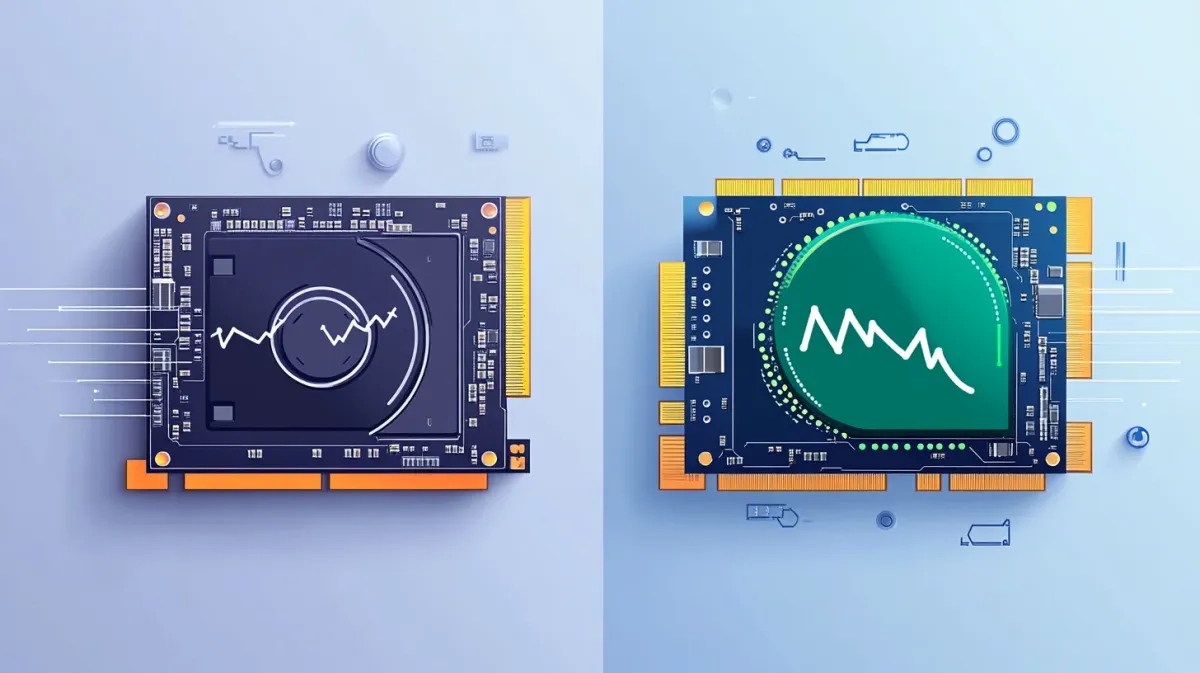
Your computer takes 30 seconds just to boot up. Every program opens with that spinning circle for several seconds. You click an icon and nothing happens.
This isn’t normal. And you don’t need a new computer to fix it.
Upgrading from a hard drive (HDD) to a solid-state drive (SSD) is the single most effective hardware upgrade you can make. I’m talking about cutting your boot time from 30-34 seconds down to 12-15 seconds—a 50-60% improvement based on peer-reviewed studies. Programs that took 10 seconds to open now launch instantly.
I’ve upgraded dozens of systems over the past five years, and the transformation is dramatic every time. Best part? You don’t have to reinstall Windows or any programs. We’ll clone everything exactly as it is—no weekend lost to setup.
This guide covers the complete process: choosing the right SSD, checking compatibility, cloning your drive, physical installation (desktop and laptop), and optimization. By the end, you’ll have a dramatically faster computer with all your data intact.
Time needed: 2-3 hours total (only 30 minutes of your time—the rest runs automatically)
What you’ll gain:
- 50-60% faster boot time (12-15 seconds instead of 30+)
- Instant program launches (no more waiting)
- Keeps all your data (Windows, programs, files—everything stays)
🟡 HighImage Needed(graphic)Side-by-side comparison showing HDD (30-34 seconds boot time) vs SSD (12-15 seconds boot time) with visual speed indicators
📝 Instructions:
Create infographic showing two computer icons side by side. Left: HDD with clock showing 30-34 seconds, slow/red indicator. Right: SSD with clock showing 12-15 seconds, fast/green indicator. Include '50-60% faster' callout.
📄 Filename:
hdd-vs-ssd-boot-time-comparison.png♿ Alt Text:
HDD vs SSD boot time comparison showing 50-60% performance improvement
This is part of our complete Windows performance optimization guide, where we cover all the ways to speed up your PC.
Before You Begin
Let’s make sure you have everything ready. Proper preparation makes this upgrade smooth.
System Requirements:
- Windows 10 or 11
- Administrator access
- 2-3 hours total time (30 minutes hands-on, rest is automated)
Tools:
- Screwdriver (Phillips for desktops, possibly Torx T5 for laptops)
- External backup drive recommended
Parts to Purchase:
- New SSD (we’ll help you choose in the next section)
- Optional: 2.5-inch to 3.5-inch mounting bracket ($8-12) for desktop installation
- Optional: USB-to-SATA adapter ($15-25) to clone externally
Safety Precautions:
- Work on a non-carpeted surface (avoid static)
- Discharge static by touching metal before handling components
- Never force connections—check orientation if something doesn’t fit
- Full shutdown before opening (not sleep mode)
About Your Data:
We’ll clone your existing drive—an exact copy of Windows, programs, settings, and files. Your original drive stays intact as backup. Nothing gets lost.
I still recommend backing up critical files (photos, documents) to an external drive before any hardware work. Better safe than sorry.
Step 1: Choosing the Right SSD
SATA, NVMe, M.2, PCIe—it sounds overwhelming. But the decision is straightforward once you understand what these terms mean.
Understanding the Terminology:
There are two things to consider: form factor (shape) and interface (how it connects).
- M.2 = form factor (looks like a stick of gum)
- 2.5-inch = form factor (looks like a laptop hard drive)
- SATA and NVMe = interfaces (communication protocols)
You can have a 2.5-inch SATA drive, an M.2 SATA drive, or an M.2 NVMe drive. Form factor and interface are independent.
Speed and Pricing (as of 2025):
- SATA SSDs: Maximum 600 MB/s. Cheapest option at $80-100 for 1TB. Works in any computer.
- NVMe PCIe 3.0: Up to 3,500 MB/s. Moderate price at $115-120 for 1TB. Needs M.2 slot.
- NVMe PCIe 4.0: Up to 7,500 MB/s. Premium price at $120-200 for 1TB. Needs newer motherboard with PCIe 4.0 support.
Here’s the truth: For typical tasks—web browsing, office work, gaming—SATA and NVMe perform similarly. NVMe is 6x faster on paper, but real-world boot times and program loading differ by only 2-5 seconds. NVMe’s extra speed matters for video editing, large databases, or professional workflows. For everyone else, SATA is plenty fast. (And if you’re a gamer, check out our complete gaming optimization guide to squeeze every FPS from your new setup.)
My Recommendation Framework:
Budget option: 2.5-inch SATA SSD
- Massive upgrade from any HDD
- Works in every desktop and most laptops
- $80-100 for 1TB
- Perfect for most users
Best value: NVMe PCIe 3.0 M.2
- If your computer supports it (we’ll check in the next step)
- Only $15-20 more than SATA
- Future-proof choice
- Noticeably faster for some tasks
Enthusiast option: NVMe PCIe 4.0
- Only if you have a PCIe 4.0-capable motherboard (mostly 2020+ systems)
- Only worth it if you regularly work with massive files
- For most users, spending the extra $50-100 won’t make a noticeable difference
🔴 CriticalImage Needed(diagram)Visual comparison showing 2.5-inch SATA drive (rectangular, laptop HDD size) next to M.2 drive (stick-shaped, 22mm x 80mm) with size labels and connector type indicators
📝 Instructions:
Create clear diagram showing two SSD types side by side with measurements. 2.5-inch SATA: rectangular shape, ~100mm x 70mm, show SATA connector. M.2 2280: thin stick shape, 22mm x 80mm, show edge connector. Label dimensions clearly. Use different colors to distinguish.
📄 Filename:
ssd-form-factor-comparison.png♿ Alt Text:
Physical comparison of 2.5-inch SATA SSD vs M.2 form factor SSD with dimensions labeled
How Much Capacity Do You Need?
- 500GB: Minimum. Enough for Windows and essential programs. Gets tight if you have games or large files.
- 1TB: Sweet spot for most users. Plenty of room for OS, programs, and files without worry.
- 2TB+: Content creators, people with large game libraries, or those who want to store everything on the SSD.
Brand Recommendations:
Stick with established manufacturers: Samsung, Crucial, Western Digital, Kingston, or Corsair. All offer 3-5 year warranties and reliable performance. I’ve had good experiences with all of them.
Avoid unknown brands with suspiciously low prices. They often use lower-quality flash memory that fails sooner. The $15 you save isn’t worth losing your data.
🟡 HighImage Needed(screenshot)Example product listings from major retailer showing SATA, PCIe 3.0, and PCIe 4.0 SSDs with prices circled to show the $80, $115, and $150 price points for 1TB capacity
📝 Instructions:
Capture Amazon or Newegg search results for '1TB SSD'. Find and highlight examples of: 1) Crucial MX500 or similar SATA (~$80-90), 2) WD Blue SN570 or similar PCIe 3.0 (~$110-120), 3) Samsung 980 PRO or similar PCIe 4.0 (~$140-180). Circle prices to show tiers. Capture in early 2025 for current pricing.
📄 Filename:
ssd-pricing-tiers-comparison.png♿ Alt Text:
SSD pricing comparison showing budget SATA, mid-range NVMe PCIe 3.0, and premium PCIe 4.0 options
Bottom line: If you’re on a budget or your computer only supports SATA, get a 2.5-inch SATA SSD. You’ll still see that 50-60% boot time improvement. If your computer supports M.2 and you can afford an extra $20, get an NVMe PCIe 3.0 drive. Skip PCIe 4.0 unless you know you need it.
Money-saving tip: The performance jump from HDD to any SSD is massive. The jump from SATA SSD to NVMe is minimal for most users. Don’t overspend on speed you won’t notice.
Now let’s make sure your computer can actually use the SSD you’re considering.
Step 2: Check Compatibility
Before you buy anything, let’s make sure your computer can actually use the SSD you’re considering. Nothing’s worse than ordering a drive and discovering your motherboard doesn’t have the right slot.
For Desktop PCs:
Good news: all desktop motherboards from the past 15+ years support 2.5-inch SATA drives. You can mount a 2.5-inch drive in a 3.5-inch bay using an adapter bracket.
For M.2 slots, you’ll need to check. Most motherboards from 2015 or newer have at least one M.2 slot.
How to check:
- Google your motherboard model + “M.2” (example: “ASUS ROG STRIX B550 M.2”)
- Check the motherboard manual (usually available as PDF on manufacturer’s website)
- Visual check: Open your case and look for a horizontal slot near the PCIe expansion slots, usually labeled “M.2”
For Laptops:
Laptop compatibility is trickier since every model is different.
General guidelines:
- Laptops from 2015+: Usually have 2.5-inch SATA bay
- Laptops from 2018+: Usually have M.2 slot
- Some have both, some have only one
- Ultra-thin laptops often only support M.2
How to check:
- Google “[your laptop model] + SSD upgrade” — you’ll often find guides for your specific model
- Check your laptop manufacturer’s website for upgrade specifications
- Use Crucial’s System Scanner tool (free) at crucial.com/upgrade-advisor — it scans your system and tells you exactly which SSDs are compatible
Quick Windows Check:
Here’s a simple way to see what type of drive you currently have:
- Press Windows key + X
- Select “Device Manager”
- Expand “Disk drives”
- Look at your current drive name
If you see “NVMe” in the name, your system supports M.2 NVMe drives. If it’s just a model number without NVMe, you likely have a 2.5-inch SATA drive.
🔴 CriticalImage Needed(screenshot)Windows Device Manager with 'Disk drives' section expanded showing an example NVMe drive listed (e.g., 'Samsung SSD 980 PRO NVMe 1TB') to demonstrate how users can identify M.2 support
📝 Instructions:
Open Windows 11 Device Manager. Click 'Disk drives' to expand. Capture showing a drive with 'NVMe' in the name. Highlight or circle the 'NVMe' text. Show full Device Manager window for context.
📄 Filename:
device-manager-nvme-check.png♿ Alt Text:
Windows Device Manager showing NVMe drive indicating M.2 compatibility
What you should see: Device Manager window showing your current storage devices with manufacturer and model information. If you see “NVMe” anywhere in the drive name, your computer supports M.2 drives.
Important note about M.2 slots: Some motherboards share PCIe lanes between M.2 slots and SATA ports. This means installing an M.2 drive might disable SATA ports 5 and 6, for example. Check your motherboard manual if you’re planning to use multiple drives.
🟡 HighImage Needed(photo)Desktop motherboard close-up photo showing M.2 slot location with arrow pointing to it and 'M.2' label visible on the board
📝 Instructions:
Photograph a modern motherboard showing the M.2 slot(s). Typically located between the CPU socket and PCIe slots, running horizontally. Add arrow or label pointing to 'M.2_1' marking on board. Ensure good lighting and focus on the slot area.
📄 Filename:
motherboard-m2-slot-location.png♿ Alt Text:
Motherboard M.2 slot location between CPU and PCIe slots
Once you’ve confirmed compatibility, you’re ready to purchase your SSD. In the next step, we’ll clone your existing drive so you don’t have to reinstall anything.
Step 3: Clone Your Existing Drive
Instead of reinstalling Windows and all your programs, we’ll create an exact copy of your current drive. Everything stays the same, just faster.
Clone vs Fresh Install:
Clone (recommended for 95% of users)
- 30-90 minutes depending on data size
- Saves you 4-5 hours of reinstalling and reconfiguring
- Keeps everything: Windows, programs, settings, files
- Boot up and everything looks identical—just faster
- Best if your current system runs well
Fresh Install
- 3-5 hours to reinstall Windows and programs
- Must reconfigure all settings, reinstall drivers
- Risk losing program licenses tied to your old installation
- Choose only if your Windows installation has persistent crashes or malware
Time savings: Cloning means you’re done in an afternoon instead of losing your entire weekend to setup.
Cloning Software (2025 Update)
Macrium Reflect went paid-only in 2025 ($70/year). Your best options:
Rescuezilla (recommended)
- Free and open source
- Graphical interface (easier than Clonezilla)
- Bootable from USB
Clonezilla (advanced users)
- Free but text-based command line
- Skip unless comfortable with CLI
Macrium Reflect X Home (paid)
- $70/year
- Easiest interface, great support
- Worth it if you want hand-holding
How to Clone Using Rescuezilla:
Step 1: Download and Create Bootable USB
- Visit rescuezilla.com and download the latest ISO file
- Download Rufus (free tool) from rufus.ie
- Insert a USB drive (4GB minimum, will be erased)
- Run Rufus and select:
- Device: Your USB drive
- Boot selection: The Rescuezilla ISO you downloaded
- Click “START”
- Wait for Rufus to create the bootable USB (takes 5-10 minutes)
Step 2: Connect Both Drives
Option A: External (recommended - safer)
- Connect new SSD via USB-to-SATA adapter
- Clone externally, then swap drives later
- Verify clone before installation
Option B: Internal
- Install new SSD alongside existing drive
- Both connected simultaneously
- Requires opening computer now
Step 3: Boot from Rescuezilla USB
- Shut down your computer completely
- Insert the Rescuezilla USB drive
- Power on and immediately press the boot menu key repeatedly:
- Dell: F12
- HP: F9 or Esc
- Lenovo: F12
- ASUS: F8 or Esc
- MSI: F11
- Most others: F12 or Esc
- Select your USB drive from the boot menu (will say something like “USB: SanDisk” or the brand of your USB drive)
- Rescuezilla will load (takes 30-60 seconds)
Step 4: Select Source and Destination
This is the critical step. Get this wrong and you could erase your data.
- Rescuezilla opens to a menu — select “Clone”
- Source drive: Select your CURRENT drive (the HDD you’re copying FROM)
- Look for the drive with your current Windows installation
- Usually labeled by size and model (e.g., “500GB WD Blue”)
- Destination drive: Select your NEW SSD (the drive you’re copying TO)
- Should be the new drive you just bought
- Double-check the model name matches your SSD
⚠️ Critical: Make absolutely certain you have source and destination correct. Cloning overwrites the destination drive completely. If you accidentally select them backwards, you’ll erase all your data. When in doubt, identify drives by their size and model name.
Step 5: Start the Clone
- Review your selections one more time
- Click “Clone” or “Start”
- Confirm when prompted
- Wait 30-90 minutes depending on how much data you have
- Cloning 250GB typically takes 30-45 minutes
- Cloning 500GB typically takes 60-90 minutes
- Do not interrupt the process — let it complete fully
🔴 CriticalImage Needed(screenshot)Rescuezilla interface showing the source and destination drive selection screen with two drives listed (old HDD as source, new SSD as destination) and clearly labeled 'Source' and 'Destination' selections
📝 Instructions:
Boot Rescuezilla from USB. Navigate to Clone function. Capture the screen showing two drives available with source/destination selection. Show drive names, sizes, and model numbers. Highlight or circle the source/destination labels to make it crystal clear.
📄 Filename:
rescuezilla-source-destination-selection.png♿ Alt Text:
Rescuezilla cloning software showing source HDD and destination SSD selection
What you should see: Rescuezilla showing both drives with their sizes and model information. One selected as “Source” (your old drive), one as “Destination” (your new SSD). A progress bar will appear once cloning starts.
Pro tip: If your new SSD is significantly larger than your old HDD (e.g., upgrading from 500GB to 1TB), the clone will initially only use 500GB of space. Don’t worry — we’ll expand the partition after installation to use the full capacity. I’ll show you how in Step 7.
🟡 HighImage Needed(screenshot)Rescuezilla showing clone in progress with progress bar at approximately 45% completion, estimated time remaining displayed, and status showing current operation
📝 Instructions:
Capture Rescuezilla mid-clone showing: progress bar partially filled, percentage complete, estimated time remaining, current operation status. Show it during active cloning so users know what to expect during the wait.
📄 Filename:
rescuezilla-clone-in-progress.png♿ Alt Text:
Rescuezilla clone operation in progress showing progress bar and time remaining
Step 6: Verify and Shut Down
- When cloning completes, Rescuezilla will show “Clone completed successfully”
- Remove the Rescuezilla USB drive
- Shut down the computer (don’t restart yet)
- Now you’re ready for physical installation
Your new SSD now has an exact copy of everything from your old drive. In the next steps, we’ll install it physically and configure your computer to boot from it.
Step 4: Physical Installation - Desktop PC
Now that your SSD has all your data on it, let’s get it installed in your desktop. This is the easiest part—you’re basically just connecting two cables and screwing the drive into place. Even if you’ve never opened a computer before, this takes about 10 minutes.
Safety First:
- Shut down your PC completely (not sleep mode—full shutdown)
- Unplug the power cable from the wall
- Press the power button for 5 seconds to discharge any residual power
- Work on a non-carpeted surface to avoid static electricity
Installing a 2.5-inch SATA SSD:
1. Open the Case
Remove the side panel—usually held by 2 screws on the back of the case. Some newer cases have thumbscrews that don’t require a screwdriver. Slide the panel off and set it aside safely.
2. Mount the SSD
You have three options depending on your case:
- Option A: Use a dedicated 2.5-inch drive bay if your case has one
- Option B: Use a 2.5-inch to 3.5-inch mounting bracket in a standard hard drive bay
- Option C: Some cases have SSD-specific mounting points on the back of the motherboard tray
Secure the SSD with screws. Most cases include these, or they came with your mounting bracket.
3. Connect the SATA Data Cable
- Plug one end into the SSD
- Plug the other end into a SATA port on your motherboard
- Look for the lowest numbered port (SATA 0 or SATA 1) for best compatibility
- The cable will click when fully inserted—you’ll hear and feel it
4. Connect the SATA Power Cable
- This comes from your power supply
- It’s wider than the data cable—you can’t mix them up
- Plug it into the power port on your SSD
- Should click firmly into place
🔴 CriticalImage Needed(photo)Desktop PC interior showing SATA ports on motherboard clearly labeled with arrows pointing to ports, and a SATA cable connected to demonstrate proper connection
📝 Instructions:
Photograph modern ATX motherboard showing SATA ports (usually 4-6 ports clustered together, often labeled SATA0-5). Add arrows/labels pointing to ports. Show one SATA cable connected. Ensure good lighting, clear focus on port area.
📄 Filename:
desktop-motherboard-sata-ports.png♿ Alt Text:
Desktop motherboard showing SATA port locations for SSD connection
🟡 HighImage Needed(diagram)Side-by-side comparison diagram showing SATA data cable (thin, L-shaped connector) vs SATA power cable (wider, L-shaped connector with more pins) to help users identify which is which
📝 Instructions:
Create clear diagram showing both cable types. SATA data: 7-pin, thin connector. SATA power: 15-pin, wider connector. Show connector shapes, pin counts labeled. Use different colors for each cable type. Add labels: 'Data Cable (to motherboard)' and 'Power Cable (from PSU)'.
📄 Filename:
sata-cable-types-comparison.png♿ Alt Text:
SATA data cable vs SATA power cable identification diagram
What you should see: SATA cables firmly connected with that satisfying click, SSD securely mounted without wobbling or loose screws.
Installing an M.2 NVMe SSD:
M.2 installation is actually simpler—no cables at all.
1. Locate the M.2 Slot
- Usually between the CPU socket and the PCIe expansion slots
- Horizontal slot with a small screw hole at the end
- Often labeled “M.2_1” or similar on the motherboard
2. Install the Drive
- Remove the mounting screw at the end of the slot (keep it handy)
- Insert the M.2 SSD into the slot at a 30-degree angle
- Slide it in until it’s fully inserted (about 3-5mm insertion depth)
- Press the drive down flat—it will spring up slightly, that’s normal
- Secure with the mounting screw you removed earlier
3. That’s It
No cables needed. M.2 drives get both power and data through the slot itself.
🟡 HighImage Needed(photo)Hands installing M.2 SSD into motherboard slot, showing the 30-degree insertion angle and proper finger placement
📝 Instructions:
Stage photo showing M.2 drive being inserted. Capture the moment of insertion at angle, with drive partially in slot. Show proper two-finger grip on edges of drive (not touching components). Ensure M.2 slot and mounting screw location visible.
📄 Filename:
m2-ssd-installation-process.png♿ Alt Text:
Installing M.2 NVMe SSD into motherboard slot at 30-degree angle
4. Close the Case
Replace the side panel, secure with screws, and reconnect the power cable.
Your desktop SSD installation is complete! Skip ahead to Step 6 (First Boot and BIOS Setup).
Step 5: Physical Installation - Laptop
Laptop installation is trickier than desktop because everything’s more compact and manufacturers use different designs. That said, most laptops from the past 5 years make SSD upgrades relatively straightforward. Let’s find your access panel and get that SSD installed.
⚠️ Warranty Check: Some laptop manufacturers void warranty if you open the laptop yourself. Check your warranty status first. Dell, HP, and Lenovo typically allow upgrades on business models, but consumer models vary. If you’re still under warranty and concerned, contact the manufacturer first.
Finding Your Laptop’s Access Method:
Before you start, Google “[your laptop model] + SSD upgrade” to find specific instructions for your model. Laptop designs vary significantly:
- Most laptops: Bottom panel removal (easiest)
- Some laptops: Keyboard removal required (more complex)
- Some: Small dedicated access panel (quickest)
Installing a 2.5-inch SATA SSD in a Laptop:
1. Power Down Completely
- Shut down (not sleep or hibernate)
- Unplug the power adapter
- Remove the battery if it’s removable (most modern laptops have internal batteries)
- Hold the power button for 5 seconds to discharge residual power
2. Access the Drive Bay
- Flip the laptop upside down on a soft surface
- Remove all screws from the bottom panel
- Pro tip: Keep screws organized! Put them in a small cup or use tape to stick them to a piece of paper with positions drawn out
- Some screws may be different lengths—note which ones go where
- Gently pry open the bottom panel
- Use a plastic opening tool or old credit card, not a screwdriver
- Start at a corner and work your way around
- Some panels have clips that need gentle pressure
- Take a photo before removing anything—helps during reassembly
3. Remove the Old Drive
- Locate the existing 2.5-inch drive (rectangular, about the size of a deck of cards)
- Remove the mounting screws holding it in place
- Gently disconnect the drive—usually slides out of the SATA connector at a slight angle
- Don’t force it—if it doesn’t slide out easily, check for additional screws or brackets
4. Install the New SSD
- Slide the new SSD into the SATA connector at the same angle the old drive came out
- Press firmly but gently until it’s fully seated
- Secure with the mounting screws you removed earlier
- Replace the bottom panel
- Replace all screws in their original locations
🟡 HighImage Needed(photo)Laptop bottom panel with screws circled or highlighted showing their locations around the perimeter and in the center, demonstrating where to remove screws for access
📝 Instructions:
Photograph laptop bottom panel (remove battery if external). Circle or highlight all visible screws with red markers/arrows. Capture full bottom panel to show screw distribution pattern. Use common laptop model (Dell, HP, or Lenovo). Ensure good lighting.
📄 Filename:
laptop-bottom-panel-screws.png♿ Alt Text:
Laptop bottom panel showing screw locations for removal
🟡 HighImage Needed(photo)Inside laptop showing 2.5-inch SATA drive in its bay with mounting bracket visible, and drive being removed or installed at slight angle
📝 Instructions:
Open laptop bottom panel. Show 2.5-inch drive in bay. Capture drive being removed/installed at angle (typically 20-30 degrees). Show SATA connector end, mounting screws/bracket. Ensure internal components visible for context but focus on drive bay area.
📄 Filename:
laptop-25-drive-installation.png♿ Alt Text:
Removing or installing 2.5-inch SATA SSD from laptop drive bay
What you should see: SSD sitting flush in the drive bay, connector fully seated, no loose screws or cables, bottom panel closes completely without gaps.
Installing an M.2 SSD in a Laptop:
1. Power Down (same as above)
2. Locate the M.2 Slot
- Usually under the bottom panel
- Sometimes under the keyboard (more difficult—consult your laptop’s service manual)
- May have a thermal pad or shield over the slot
3. Install the Drive
- Remove any thermal pad covering the slot (save it for reinstallation)
- Remove the mounting screw at the end of the M.2 slot
- Insert M.2 SSD at a 30-degree angle
- Push in until fully seated
- Press down flat
- Secure with mounting screw
- Replace thermal pad if there was one
- Reassemble laptop
🔵 MediumImage Needed(photo)Laptop interior showing M.2 slot location, typically near RAM slots or under a heat shield, with thermal pad visible or removed
📝 Instructions:
Open laptop showing M.2 slot. If thermal pad present, show it partially removed to reveal slot. Point out M.2 slot location with arrow. Show mounting screw location. Capture wider view showing RAM slots nearby for orientation reference.
📄 Filename:
laptop-m2-slot-location.png♿ Alt Text:
Laptop M.2 SSD slot location with thermal pad
Pro tip: Keep screws organized by putting them in a small cup or using tape to hold them to a piece of paper with labeled positions. Laptop screws are tiny and easy to lose.
4. Test Before Fully Reassembling
Before replacing all the screws and closing everything up:
- Replace the bottom panel loosely (don’t screw it down yet)
- Connect power and turn on the laptop
- Enter BIOS to verify the SSD is detected
- If it shows up, shut down and fully reassemble
- If it doesn’t, reseat the drive before screwing everything back together
Now let’s get your computer to boot from the new SSD.
Step 6: First Boot and BIOS Setup
Your new SSD is installed and has all your data. Now we need to tell your computer to boot from it instead of looking for your old drive. This takes about 2 minutes in BIOS.
Accessing BIOS:
- Power on your computer
- Immediately start pressing the BIOS key repeatedly (tap it every half-second)
- Dell: F2
- HP: F10 or Esc
- Lenovo: F1 or F2
- ASUS: F2 or Del
- MSI: Del
- Gigabyte: Del
- Most others: Del or F2
- You’ll see the BIOS screen appear (looks different than Windows—usually blue or black text interface)
Setting Boot Order:
- Navigate to the “Boot” tab
- Use arrow keys to move (mouse doesn’t work in most BIOS)
- Look for “Boot Order,” “Boot Priority,” or “Boot Sequence”
- Find your new SSD in the list
- Should be listed by brand and model (e.g., “Samsung SSD 980 PRO”)
- If you have both old and new drives connected, look for the SSD model you bought
- Move the SSD to the top position (#1)
- Usually press + or - keys to move items up/down
- Some BIOS use F5/F6 keys
- Instructions are usually shown at the bottom of the screen
- Save and exit
- Press F10 (most common save key)
- Confirm “Yes” when prompted
- Computer will restart
🟡 HighImage Needed(screenshot)BIOS boot order screen showing list of boot devices with SSD highlighted and set as first boot device, showing typical BIOS interface layout
📝 Instructions:
Enter BIOS on a system with SSD. Navigate to Boot tab/section. Capture screen showing boot priority list with SSD as #1 boot device. Show full BIOS interface including navigation instructions at bottom. Use modern UEFI BIOS if possible for current relevance.
📄 Filename:
bios-boot-order-ssd-first.png♿ Alt Text:
BIOS boot order configuration with SSD set as first boot device
What Happens Next:
- Computer restarts
- Should boot into Windows normally
- Everything looks exactly the same as before
- But it’s dramatically faster—you’ll notice the difference immediately
What you should see: Windows login screen appearing much faster than usual (12-15 seconds vs your old 30+ seconds).
If Windows Doesn’t Boot:
Don’t panic. Check these things:
- Go back into BIOS (restart and press the BIOS key again)
- Verify the SSD is detected under “Storage” or “SATA Configuration”
- Check that boot mode (UEFI vs Legacy) matches your Windows installation
- Most modern systems use UEFI
- If your old drive was UEFI, the SSD clone needs to boot in UEFI mode too
- Try disabling Secure Boot temporarily (under Security or Boot settings)
- If still no boot, see the Troubleshooting section below
Once you’re booted successfully into Windows, we need to do a few quick optimizations.
Step 7: Post-Installation Optimization
Your SSD is installed and working, but we’re not quite done. Windows needs a few optimizations to get the most performance out of your SSD and ensure it lasts as long as possible. These tweaks take 5 minutes and can extend your SSD’s lifespan significantly.
Check That TRIM is Enabled:
TRIM is a command that tells your SSD which data blocks are no longer in use. This allows the SSD to erase them proactively, maintaining performance and extending lifespan.
- Right-click the Start button
- Select “Terminal (Admin)” or “Command Prompt (Admin)”
- Type:
fsutil behavior query DisableDeleteNotify - Press Enter
What you should see:
DisableDeleteNotify = 0means TRIM is enabled (good!)DisableDeleteNotify = 1means TRIM is disabled (needs fixing)
If TRIM is disabled, enable it:
- In the same Command Prompt window
- Type:
fsutil behavior set DisableDeleteNotify 0 - Press Enter
- Close the window
🔴 CriticalImage Needed(screenshot)Command Prompt window showing the fsutil command output with 'DisableDeleteNotify = 0' result indicating TRIM is enabled
📝 Instructions:
Open Command Prompt as Administrator. Run 'fsutil behavior query DisableDeleteNotify'. Capture output showing 'NTFS DisableDeleteNotify = 0' (and ReFS if shown). Show full Command Prompt window with title bar for context. Windows 11 preferred.
📄 Filename:
command-prompt-trim-enabled.png♿ Alt Text:
Command Prompt showing TRIM enabled on Windows SSD
Verify Drive Optimization Schedule:
Windows automatically runs TRIM on a schedule. Let’s verify it’s set up correctly.
- Press Windows key and search for “Defragment”
- Open “Defragment and Optimize Drives”
- Your SSD should show type as “Solid state drive”
- Check the “Scheduled optimization” status—should say “On”
- Click “Change settings” to verify
- Ensure “Run on a schedule” is checked
- Frequency should be “Weekly”
Important: Windows does NOT defragment SSDs (that would cause unnecessary wear). Instead, it sends TRIM commands on this schedule. This is exactly what you want.
🟡 HighImage Needed(screenshot)Windows Optimize Drives utility showing SSD listed as 'Solid state drive' type with scheduled optimization enabled and set to Weekly frequency
📝 Instructions:
Open Defragment and Optimize Drives. Show main window with SSD listed, 'Solid state drive' in Media type column, and scheduled optimization showing 'On, Weekly'. Capture full window. Windows 11 preferred for current UI.
📄 Filename:
windows-optimize-drives-ssd-schedule.png♿ Alt Text:
Windows Optimize Drives showing SSD with weekly TRIM schedule enabled
Expand Partition (If Your SSD is Larger):
If you upgraded to a larger SSD (e.g., 500GB HDD to 1TB SSD), you’ll have unallocated space that needs to be added to your C: drive.
- Right-click Start → Disk Management
- Look at your C: drive—if there’s black “Unallocated” space after it, you need to expand
- Right-click your C: partition
- Select “Extend Volume”
- Click through the wizard (default settings are fine)
- Click “Finish”
Your C: drive now uses the full capacity of your SSD.
🔵 MediumImage Needed(screenshot)Windows Disk Management showing SSD with unallocated space (black bar) after the C: partition, demonstrating the need to extend the volume
📝 Instructions:
Open Disk Management. Show scenario where SSD has allocated partition (C:) followed by unallocated space (shown in black/striped). Capture full Disk Management window showing both the graphical disk view and the list view above it. Add arrow pointing to unallocated space.
📄 Filename:
disk-management-unallocated-space.png♿ Alt Text:
Disk Management showing unallocated space after SSD clone
Optional: Disable Hibernation (Saves 4-16GB)
Hibernation creates a file on your SSD equal to your RAM size. If you never use hibernation (most people don’t), you can reclaim this space.
Only do this if you never use hibernation mode.
- Open Command Prompt as Administrator
- Type:
powercfg.exe /hibernate off - Press Enter
To re-enable later if needed: powercfg.exe /hibernate on
Pro tip: Windows 10 and 11 automatically detect SSDs and configure most optimizations correctly. These checks just verify everything’s set up properly. If all checks pass, you’re good to go!
Looking for more ways to optimize? After your SSD upgrade, consider disabling unnecessary background apps and adjusting visual effects for even better performance.
Your SSD is now fully optimized and ready to use. If you encounter any issues, check the troubleshooting section next.
Troubleshooting Common Issues
Even with careful preparation, you might hit a snag during your SSD upgrade. I’ve diagnosed and fixed these exact problems dozens of times—they’re almost always simple fixes. Here are the most common issues and exactly how to solve them.
Note: If you’re experiencing slow boot times even after the SSD upgrade, check our complete slow startup troubleshooting guide. And if you encounter blue screens after the hardware change, see our BSOD troubleshooting guide.
Troubleshooting Common Issues
Computer Doesn't Recognize New SSD
Symptoms: SSD missing from BIOS or Disk Management.
Solutions:
-
Check connections (fixes 70% of issues)
- SATA: Disconnect and reconnect both cables until they click
- M.2: Remove and reseat at 30-degree angle
-
Try different SATA port - Use port 0 or 1
-
Check BIOS - Look for “SATA Configuration,” verify port isn’t disabled
-
Check M.2 lane sharing - Some motherboards disable SATA 5-6 when M.2 is used. Check manual, move drives if needed.
-
Test in another computer - Verify not DOA, get replacement if defective
Clone Failed or Won't Boot
Symptoms: Clone errors or “No bootable device found.”
Solutions:
-
Run Check Disk first - Bad sectors cause clone failures
- Command Prompt as Admin:
chkdsk C: /f - Restart when prompted
- Command Prompt as Admin:
-
Check SSD size - Must be ≥ used space (not total size). 500GB HDD with 480GB used won’t fit on 256GB SSD.
-
Disable BitLocker if encrypted
- Search “BitLocker” → Turn off
- Wait for decryption (can take an hour)
- Reclone
-
Try different software - Rescuezilla vs Macrium
-
Check boot mode - Clone must match original (UEFI or Legacy). Check in BIOS.
SSD is Slower Than Expected
Symptoms: Boot time barely improved, file transfers still sluggish, everything feels slower than it should.
Solutions:
-
Verify you’re actually booting from the SSD. You’d be surprised how often this is the problem.
- Right-click taskbar → Task Manager
- Click “Performance” tab
- Click “Disk 0” in the left sidebar
- Top right should show your SSD model name
- If it shows your old HDD, go back to BIOS and fix boot order
-
Check SATA mode in BIOS. If SATA mode is set to “IDE” instead of “AHCI,” performance will be terrible.
- Enter BIOS
- Find “SATA Mode” or “SATA Configuration”
- Change from “IDE” to “AHCI”
- Save and reboot
- ⚠️ Warning: Changing this on an existing Windows installation might cause boot issues. Google “enable AHCI after Windows install” if needed.
-
For M.2 drives: Verify correct slot type. Some motherboards have both SATA M.2 slots and PCIe M.2 slots. If you put an NVMe drive in a SATA slot, it won’t work at full speed (or at all).
- Check motherboard manual to identify which slot is PCIe
- Move drive to correct slot if needed
-
Update SSD firmware. Outdated firmware can cause performance problems.
- Visit your SSD manufacturer’s website
- Download their SSD management software (Samsung Magician, Crucial Storage Executive, etc.)
- Check for firmware updates
- Apply if available
-
Verify TRIM is enabled. See the Post-Installation Optimization section above and run the TRIM check.
Missing Storage Space After Clone
Symptoms: You cloned a 500GB drive to a 1TB SSD, but Windows only shows 500GB available.
Solutions:
- Extend your partition. This is normal behavior—cloning creates the same partition size as the original.
- Right-click Start → Disk Management
- Look for black “Unallocated” space after your C: drive
- Right-click the C: partition
- Select “Extend Volume”
- Click through the wizard using default options
- Your C: drive now uses the full SSD capacity
🟡 HighImage Needed(screenshot)Windows Disk Management showing the context menu with 'Extend Volume' option highlighted after right-clicking the C: partition that has unallocated space after it
📝 Instructions:
Open Disk Management showing scenario with partition followed by unallocated space. Right-click the C: partition to open context menu. Capture with 'Extend Volume' option visible and highlighted. Show full Disk Management window with both graphical and list views.
📄 Filename:
disk-management-extend-volume-option.png♿ Alt Text:
Disk Management context menu showing Extend Volume option to claim unallocated space
No Bootable Device Error
Symptoms: Black screen saying “No bootable device found” or “Operating system not found.”
Solutions:
-
Fix boot order in BIOS.
- Enter BIOS (F2, Del, or F12 depending on manufacturer)
- Navigate to Boot tab
- Move SSD to #1 position
- Save and exit
-
Check Secure Boot settings. Secure Boot can prevent booting from cloned drives.
- In BIOS, find “Secure Boot” (usually under Security tab)
- Try disabling it temporarily
- Save and restart
- If this fixes it, you can re-enable Secure Boot after Windows boots successfully once
-
Verify boot mode. UEFI vs Legacy mismatch is a common issue.
- In BIOS, check boot mode setting
- Try switching between UEFI and Legacy
- Match the mode your original Windows installation used
-
Use Windows Repair.
- Create Windows installation media on a USB drive (Microsoft’s Media Creation Tool)
- Boot from USB
- Select “Repair your computer” → Troubleshoot → Startup Repair
- Let Windows attempt to fix boot issues
- This often rebuilds the boot configuration
-
Last resort: Reclone. If nothing works and your data is on the original drive, try cloning again. Sometimes the clone gets corrupted.
Laptop Won't Close Properly After Installation
Symptoms: Bottom panel doesn’t sit flush, lid won’t close completely, or you see pressure marks on the screen.
Solutions:
-
Check panel alignment. Remove and reseat the bottom panel. Make sure all clips are engaged properly.
-
Verify correct screw lengths. Using screws that are too long can push the panel out. Check that each screw goes in the hole it came from.
-
Check for pinched cables. A SATA cable or ribbon cable trapped under the panel will prevent it from sitting flush. Open the panel and make sure all cables route properly.
-
SSD thickness issue. Some ultra-thin laptops have extremely tight clearances. A thicker SSD might not fit. Check your SSD specs:
- 2.5-inch SSDs: Most are 7mm thick, older ones are 9.5mm
- M.2 SSDs: Usually no thickness issues
- If your SSD is 9.5mm and your laptop needs 7mm, you’ll need to exchange it
If your laptop panel won’t close even after these checks, consult your laptop’s service manual or consider professional installation.
Conclusion
You just completed the single most effective hardware upgrade you can make for PC performance. No other upgrade comes close to this before-and-after transformation.
Your boot time should now be 50-60% faster (down from 30+ seconds to 12-15 seconds). Programs that used to take 10 seconds to open now launch instantly. Everything feels snappy and responsive. Your computer feels new again, and you didn’t spend hundreds on a replacement.
What You Accomplished:
- ✓ Chose the right SSD for your needs and budget
- ✓ Successfully cloned your entire drive without losing any data
- ✓ Physically installed the hardware (and gained confidence working inside your PC)
- ✓ Configured BIOS and optimized Windows for peak SSD performance
Next Steps to Maximize Your Speed:
Your hardware is now optimized. Want to go further? Combine this upgrade with software optimization:
- Clean up startup programs - Free up RAM and reduce boot load
- Free up disk space - Reclaim gigabytes with our comprehensive cleanup guide
- Optimize for gaming - Get even more FPS from your new SSD
- Add more RAM if under 8GB - Complements your SSD upgrade
- Set up regular backups - Your SSD will last 5-10 years, but always have a backup plan
Want even more performance? Our complete Windows performance optimization guide has software tweaks that stack with your new hardware for maximum speed.
Questions about your specific setup? Drop a comment below—I read and respond to every one.
Frequently Asked Questions
Can I upgrade from HDD to SSD without reinstalling Windows?
Yes! The cloning process in Step 3 transfers everything—Windows, programs, settings, files. After the upgrade, everything looks identical (same desktop, icons, bookmarks) but runs dramatically faster. No reinstalling, no reconfiguring, no license key issues. Your Windows license transfers automatically with the clone.
Does my new SSD need to be the same size as my old HDD?
No, but it must have enough capacity for your used space, not total capacity. If your 500GB HDD has 300GB of files, a 256GB SSD won’t work—but a 500GB or larger SSD will. Check your current used space: open File Explorer, right-click your C: drive, select Properties. The new SSD should be at least as large as the “Used space” value, ideally with 20-50GB extra room.
Will my Windows license still work after upgrading to an SSD?
Yes, your Windows license stays valid after an SSD upgrade. When you clone your drive, the license information transfers with it. Windows 10 and 11 licenses are typically tied to your motherboard (for pre-built PCs) or your Microsoft account (if you upgraded from Windows 7/8 or purchased separately). Since you’re not changing the motherboard, Windows will activate automatically after booting from the SSD. No need to re-enter product keys or contact Microsoft.
Do I need to buy a certain brand of SSD?
Stick with established manufacturers: Samsung, Crucial, Western Digital, Kingston, or Corsair. All offer 3-5 year warranties and consistent quality. I’ve used these brands in dozens of upgrades without issues. Avoid unknown brands with suspiciously low prices—they use lower-quality flash memory that fails sooner. The $15 you save isn’t worth losing your data or dealing with premature failure.
Is NVMe really that much faster than SATA for everyday use?
For most users, no. NVMe is 6x faster on paper (3,500 MB/s vs 600 MB/s), but real-world boot times and program loading differ by only 2-5 seconds. NVMe matters for: video editing, large file transfers, databases, software compilation, or 3D rendering. For web browsing, gaming, and Office work, SATA is plenty fast. The jump from HDD to any SSD is massive (50-60% faster), but SATA to NVMe is minimal for typical tasks. Don’t overspend on speed you won’t notice.
Should I clone or do a fresh Windows install?
Clone for 95% of cases. It saves 4-5 hours of reinstallation and reconfiguration time. Everything transfers—programs, settings, files—and you’re up and running in 30-90 minutes. Only choose fresh install if your current Windows has persistent crashes, malware infections, or severe corruption. If your system runs reasonably well now, cloning is faster and easier. You can always fresh install later if needed.
Can I keep both my old HDD and new SSD in my computer?
Absolutely! This is actually an ideal setup: SSD for Windows and programs (speed), HDD for file storage (cheap capacity). Set the SSD as boot drive #1 in BIOS, and your old HDD becomes a secondary storage drive (D: or E:). Desktop PCs easily accommodate multiple drives. Laptops vary—some have space for two drives, others don’t. Check your laptop model’s specifications or service manual.
How do I know if my SSD is failing?
Warning signs include: sudden performance drops, files corrupting randomly, disk write errors in Event Viewer, frequent freezes, or blue screens with storage-related error codes. Check drive health using manufacturer software (Samsung Magician, Crucial Storage Executive, WD Dashboard) or CrystalDiskInfo (free). These tools show remaining lifespan percentage and any critical warnings. Most SSDs have 3-5 year warranties. If issues appear early, request warranty replacement. Past warranty? Back up immediately and replace the drive.
Will upgrading to an SSD void my laptop warranty?
Depends on manufacturer and region. In the US, the Magnuson-Moss Act protects your right to upgrade RAM and storage without voiding warranty. However, if you damage something during installation (cracked screen, stripped screw, broken connector), that specific damage isn’t covered. Dell, HP, and Lenovo typically allow upgrades on business models (ThinkPad, Latitude, EliteBook). Consumer models vary—check your warranty terms. Work carefully, take photos during disassembly, and never force anything. Warranty issues come from installation damage, not from simply opening the laptop.
Do SSDs really last as long as HDDs?
Modern SSDs last 5-10 years with normal use and are more reliable than HDDs. Each SSD cell has a write limit (300-1,000 cycles for TLC NAND), but wear leveling spreads writes evenly across all cells. For typical use (10-20GB written per day), SSDs handle hundreds of terabytes before reaching their limit—translating to many years of reliable service. HDDs fail from mechanical wear: spinning platters, moving read/write heads, and motors eventually break. SSDs have no moving parts. Backblaze’s 2023 data confirms this—0.90% annual failure rate for SSDs vs 1.31% for HDDs. Always keep backups regardless of drive type.
Need an automated solution?
Save time with professional PC optimization software trusted by thousands of users.
View Top-Rated Tools
Derek Armstrong
Performance & Tech Specialist
Derek brings 20+ years of performance optimization expertise with a background spanning programming, SEO, marketing, and AI. He's obsessed with speed and efficiency—whether it's optimizing Windows performance, leveraging AI tools for productivity, or getting the most out of software applications. Derek's multi-disciplinary perspective helps him find optimization opportunities others miss. He covers everything from system performance to AI tools, creative software, productivity apps, and any technology that Windows users interact with daily.